
Your three-year-old laptops are slowing down. Your server warranties just expired. And your CFO wants to know why you’re asking for another hardware budget.
Sound familiar?
An IT refresh cycle is your planned timeline for upgrading or replacing hardware before it becomes a liability. Think of it as scheduled maintenance for your tech stack—except the stakes are security breaches, compliance failures, and angry users submitting tickets.
Here’s what most IT teams miss: keeping aging hardware isn’t just expensive. It’s dangerous. Older devices cost more in downtime, support hours, and security gaps than new equipment ever would.
This guide will help you decide when to upgrade, when to replace, and when to permanently retire your IT assets. No fluff. Just the framework you need to build a defensible refresh strategy.
Enterprise IT Refresh Cycle Overview
Typical IT Refresh Cycle Duration (3–5 Years)
Most enterprises refresh hardware every three to five years. That’s not arbitrary—it’s where depreciation schedules, warranty coverage, and performance curves all intersect.
Here’s why this window works:
Year 1–2: Hardware performs well. Warranty covers failures. Support is cheap.
Year 3–4: Performance dips. Warranty expires. Repair costs climb. Security patches slow down.
Year 5+: You’re gambling. Components fail. Firmware updates stop. Compliance risks spike.
A refresh doesn’t always mean total replacement. Sometimes you’re swapping power users to new laptops while shifting their old ones to lighter workloads. Other times you’re consolidating ten aging servers into three modern ones.
The goal is simple: replace assets before they cost more to keep than to refresh.
Balancing Cost, Performance, and Security
Every refresh decision comes down to three factors:
Cost: What’s the true total cost of ownership? Factor in support tickets, downtime, energy consumption, and security incidents—not just the purchase price.
Performance: Can your team do their jobs efficiently? “Good enough” looks different for a developer running VMs versus someone answering emails.
Security: Can you patch critical vulnerabilities? If firmware updates stopped or the OS is unsupported, you’re exposed.
Most IT leaders get this wrong by optimizing for upfront cost only. They’ll stretch a laptop to year six to save $1,200—then lose $8,000 in lost productivity and breach remediation.
Think in tradeoffs. CAPEX budgets hurt today. OPEX leaks kill you slowly. Balance both.
Shorter Cycles for Mission-Critical Infrastructure
Some assets can’t afford downtime. Core servers, identity systems, firewalls, and internet-facing infrastructure need aggressive refresh cycles.
Here’s why:
Uptime requirements: A payment gateway going down costs revenue by the minute. You can’t wait for a failure.
Attack surface: Anything exposed to the internet needs the latest firmware, fastest patches, and strongest controls.
Regulatory pressure: PCI-DSS, HIPAA, and SOC 2 audits will flag outdated infrastructure fast.
For mission-critical systems, refresh every three to four years maximum. Standardize configurations so replacements are plug-and-play. Keep spare hardware onsite for instant swaps.
Don’t gamble with assets that keep your business running.
Longer Cycles for Non-Critical Assets
Not everything needs a short leash. Kiosks, meeting room PCs, and low-intensity workloads can stretch to five or six years—if you’re smart about it.
Extend lifespan with targeted upgrades. Swapping an HDD for an SSD can add two years of usable life for $80. Adding RAM costs less than replacing the whole device.
Use these longer cycles for:
- Secondary roles: Training labs, guest devices, inventory scanners
- Stable workloads: Point-of-sale terminals, digital signage, reception desks
- Low-risk environments: Internal-only devices with minimal data exposure
Monitor health metrics religiously. If crash rates spike or support tickets double, pull the trigger on replacement. “Set-and-forget” is how you end up with a seven-year-old PC causing network outages.
IT Refresh Cycle Timelines by Device Type
Laptop Refresh Cycle (3- 4 Years)
Laptops take a beating. Batteries degrade. Hinges crack. Cooling fans clog with dust. Thermal throttling kicks in.
Plan to refresh laptops every three to four years, depending on user role.
High-intensity users (developers, designers, executives): Refresh every three years. They need performance, security features like TPM 2.0, and modern OS support.
Task workers (support staff, sales reps): Stretch to four years if performance holds. Monitor battery health and incident rates.
Security is the real forcing function. Older laptops may lack hardware-based encryption, secure boot, or endpoint detection compatibility. When your security stack stops supporting a model, it’s time to retire it.
Desktop Refresh Cycle (3–5 Years)
Desktops last longer than laptops because they don’t move. No drops, no battery wear, no hinge failures.
Most desktops hit their sweet spot at four to five years. Specialty workloads—like CAD, 3D rendering, or data science—need faster cycles.
You can extend desktop life with strategic upgrades:
- Swap HDD to SSD: Instant performance boost
- Add RAM: Cheap fix for multitasking slowdowns
- Replace failing PSUs or drives before total failure
Just don’t create “Frankenbuilds” with mismatched components. Standardization keeps support costs low and swaps fast.
Server Refresh Cycle (4–6 Years)
Servers follow vendor support windows. Most manufacturers offer five-year support contracts. After that, firmware updates stop and replacement parts vanish.
Refresh servers every four to six years. Here’s your planning framework:
Year 4: Start evaluating replacement options. Test compatibility with current workloads.
Year 5: Execute the refresh. Migrate workloads. Decommission old hardware.
Year 6: Emergency only. You’re paying premium support fees and risking unpatched vulnerabilities.
Modern servers also bring power efficiency. A six-year-old server can pull 50% more energy than a new one doing the same work. Factor energy costs into your ROI calculation.
Virtualization and hyperconverged infrastructure let you consolidate aging servers into fewer, more powerful units. That’s a refresh and a cost reduction in one move.
Network Device Refresh Cycle (5–7 Years)
Switches, firewalls, and access points can stretch to five to seven years—but end-of-life (EOL) dates force your hand.
Network gear reaches EOL faster than you’d expect. When it does, patches stop. Security updates disappear. Replacement parts dry up.
Plan refreshes around:
Throughput needs: Zero Trust architectures and segmentation demand more processing power.
Standards upgrades: Wi-Fi 5 to Wi-Fi 6, old encryption protocols to modern ciphers.
Feature gaps: SD-WAN, advanced threat prevention, automated failover.
Check EOL calendars annually. If a device goes EOL within 18 months, budget the replacement now. Don’t wait for a failure during a critical project.
When to Upgrade, Replace, or Dispose IT Equipment
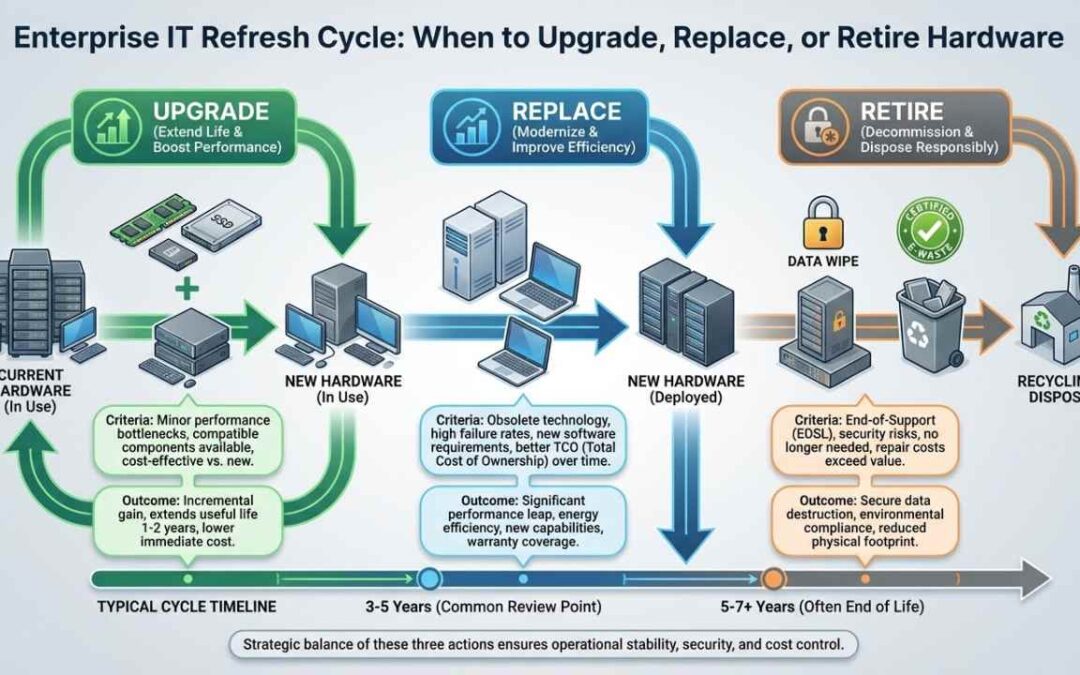
When to Upgrade Existing Hardware
Upgrades make sense when you can extend life without breaking standardization.
Good upgrade candidates:
- SSDs replacing HDDs (massive performance boost)
- RAM additions (if slots are available)
- Battery replacements (laptops only)
- Network cards or wireless modules (compatibility fixes)
When upgrades work:
- The device is under three years old
- Support costs haven’t spiked
- Security and OS compatibility remain solid
- You’re not creating one-off configurations
When to skip upgrades:
- Soldered components (RAM, storage)
- Device already maxed out
- Repair costs exceed 40% of replacement cost
Avoid “Frankenbuilds.” If you’re jury-rigging incompatible parts or creating unique snowflake configs, just replace the device.
When to Replace Aging IT Assets
Replacement becomes non-negotiable when the math flips.
Replace when:
- Warranty expires and incident tickets double
- Security patches stop or firmware goes EOL
- Device can’t run required management agents
- Repair costs hit 50% of new device cost
- Compliance audits flag unsupported hardware
Replacement also gives you a chance to standardize. Cutting from twelve laptop SKUs to three slashes support complexity and parts inventory.
Build a replacement trigger list: specific models, age thresholds, and security baselines that force retirement. Automate the decision wherever possible.
When to Dispose or Recycle Obsolete Equipment
Some assets can’t be saved. They’re too old, too broken, or too risky to keep.
Dispose when:
- Hardware is non-upgradable and non-compliant
- Physical degradation is severe (swelling batteries, overheating)
- Device failed multiple times in six months
- Data sanitization isn’t possible (broken storage controller)
Data-bearing devices need certified sanitization before disposal. That means:
- NIST-compliant wipe software with certificates
- Crypto-erase for self-encrypting drives
- Physical destruction for devices that can’t boot
Document everything. Auditors want proof of chain of custody, wipe completion, and downstream recycling.
Choose certified e-waste recyclers. Avoid landfill dumping or informal recycling chains that extract metals unsafely.
Key Drivers of Enterprise IT Refresh Decisions
End-of-Life (EOL) and End-of-Service Life (EOSL)
EOL means the vendor stopped selling a product. EOSL means they stopped supporting it.
Here’s what breaks first when you hit EOSL:
- Security patches disappear
- Firmware updates stop
- Replacement parts become scarce or impossible to source
- Vendor support escalates to “sorry, we can’t help”
Create an EOL calendar for every critical asset class. Align it to your budget cycle so you’re never caught off-guard.
Check vendor sites quarterly. EOL dates shift. Products get discontinued early. If you’re planning a three-year refresh but the vendor announces EOSL in 18 months, accelerate your timeline.
Security and Compliance Risks
Outdated hardware creates audit nightmares.
What auditors flag:
- Unpatched vulnerabilities with known exploits
- Unsupported encryption protocols (TLS 1.0, weak ciphers)
- Missing hardware-based security (TPM, secure boot, firmware attestation)
What breaks compliance:
- Data on devices without encrypted storage
- No proof of secure disposal or sanitization
- Assets running OS versions outside support windows
Prioritize refreshes by exposure. Internet-facing assets first. Data-bearing devices second. Internal kiosks last.
If an asset stores customer data, processes payments, or connects to regulated systems, refresh it aggressively. Waiting for failure is how breaches happen.
Performance Degradation and Software Compatibility
Performance doesn’t fail suddenly. It erodes.
Watch for these signals:
- Boot times double over six months
- Frequent crashes or blue screens
- Thermal throttling under normal load
- Storage wear warnings (SMART alerts)
Modern software demands modern hardware. Collaboration suites, endpoint detection tools, and virtualization platforms all set minimum baselines.
If you can’t install the current OS, run required security agents, or support standard apps, the device is done.
Compatibility issues sneak up on you. A CPU lacking certain instruction sets. A chipset without driver support. A BIOS too old to recognize new peripherals.
Track compatibility proactively. When app vendors announce new baselines, cross-check your inventory immediately.
Budgeting and Fiscal Planning Considerations
Refreshes cost money. Build the business case before you ask for budget.
Calculate total cost:
- Per-user cost (laptop, peripherals, deployment labor)
- Per-site cost (networking, servers, UPS)
- Per-rack cost (servers, power distribution, cooling impact)
Compare ownership models:
- Leasing: Predictable OPEX, built-in refresh cycles, but higher total cost
- Purchasing: Lower long-term cost, but CAPEX-heavy and requires disposal planning
Build your business case around three pillars:
- Productivity: Quantify time lost to slow boots, crashes, and reboots
- Downtime: Estimate revenue impact of outages and failed hardware
- Risk: Model breach costs, compliance fines, and incident response expenses
CFOs respond to numbers. Show them the cost of not refreshing.
Phased Rollout Strategies for IT Refreshes
Never refresh everything at once. You’ll overwhelm your team and create chaos.
Use a phased approach:
Phase 1: Pilot (5–10% of target devices)
- Deploy to friendly users or a single team
- Test imaging, app compatibility, and helpdesk scripts
- Collect feedback and fix issues before scaling
Phase 2: Wave rollout (20–30% per wave)
- Prioritize high-risk teams first (customer-facing, security, executives)
- Stagger waves by two to four weeks
- Monitor incident rates and adjust
Phase 3: Stabilization
- Finish remaining assets
- Document lessons learned
- Update runbooks and standard configs
Minimize disruption:
- Schedule swaps after hours or during slow periods
- Offer white-glove programs for executives
- Use “swap-in-place” programs where users get devices pre-configured
Rushed refreshes create support tickets and user frustration. Slow and steady wins.
Best Practices for IT Refresh and Asset Lifecycle Management
Regular IT Asset Assessment and Monitoring
You can’t refresh what you can’t see.
Track health metrics religiously:
- Storage health: SMART data, wear leveling, bad sectors
- Battery cycles: Capacity loss over time (laptops, UPS)
- Crash rates: Blue screens, kernel panics, forced reboots
- Uptime: Devices that reboot frequently or offline often
Keep your CMDB or ITAM tool accurate. If your inventory is 80% accurate, your refresh plan is built on bad data.
Look for failure clusters. If one laptop model has 3x the crash rate of others, flag it for early replacement. Don’t wait for the warranty to expire.
Proactive and Strategic Refresh Planning
Ad-hoc refreshes waste money and create gaps.
Build a standard refresh policy:
- Laptops: 3–4 years
- Desktops: 4–5 years
- Servers: 4–6 years
- Network gear: 5–7 years
Add an exception process for edge cases. A designer might need early replacement. A warehouse scanner might stretch to seven years.
Align refresh cycles to security baselines and OS roadmaps. If Windows 10 support ends in 2025, plan your laptop refresh to finish before that deadline.
Vendor management matters:
- Negotiate multi-year support tiers
- Maintain spare pools for instant replacements
- Set SLAs for replacement turnaround
Don’t let vendors dictate your timeline. Own the roadmap.
Secure Data Wiping Before Disposal or Donation
Every disposed device is a potential data breach.
Sanitization methods:
- Software wipe: NIST 800-88 compliant tools (DBAN, Blancco)
- Crypto-erase: Instant wipe for self-encrypting drives
- Physical destruction: Shredding, degaussing, or crushing
Document everything:
- Wipe certificates with device serial numbers
- Chain of custody logs
- Downstream recycler certifications
Special handling required:
- SSDs (wear leveling means deleted data may persist)
- Self-encrypting drives (crypto-erase only if key management worked)
- Mobile devices (factory reset isn’t enough—use MDM wipe)
Never donate or resell devices without verified wipes. One exposed hard drive can cost millions in breach response.
Balancing Replacement, Refurbishment, and Donation
Not every retired device goes to e-waste.
Refurbishment for secondary use:
- Lab environments and training rooms
- Loaner fleet for short-term needs
- Guest devices for contractors
Donation considerations:
- Wipe data completely first
- Remove all asset tags and company branding
- Confirm donation partner won’t resell internationally without controls
Resale options:
- Work with certified IT asset disposition (ITAD) brokers
- Get valuations before scrapping
- Require audits and downstream tracking
Maximize value recovery where safe. Just never compromise on data security.
Best Practices for Sustainable IT Upgrades
Eco-Friendly Disposal of Old Hardware
E-waste is the fastest-growing waste stream globally. IT teams have a responsibility to handle it right.
Choose certified recyclers:
- R2 (Responsible Recycling) certified
- e-Stewards certified
- ISO 14001 environmental management
Avoid these red flags:
- Recyclers that export to countries without e-waste regulations
- Companies that landfill instead of recover materials
- Brokers with no downstream audit trail
Track your impact:
- Diversion rates (% kept out of landfills)
- Reuse metrics (devices refurbished vs scrapped)
- CO₂ estimates (emissions avoided through recycling)
Sustainability isn’t just good PR. It reduces environmental harm and improves your ESG profile.
Aligning Refreshes with IT Asset Lifecycle Management
Think circular, not linear.
Circular IT workflow:
- Procure: Buy devices built for repairability and longevity
- Operate: Maintain and monitor to extend usable life
- Reuse: Shift to secondary roles instead of immediate disposal
- Recycle: Recover materials responsibly
Procurement specs that improve sustainability:
- Modular designs (replaceable RAM, storage, batteries)
- Energy efficiency certifications (ENERGY STAR, EPEAT Gold)
- Longer warranty options (5+ years)
Extend device life wherever security and reliability allow. A four-year laptop that stretches to five—safely—keeps e-waste out of the system.
When Should You Retire Business Equipment?
1. The Device Fails Compliance or Security Standards
If the device can’t meet current security baselines, it’s done.
Retire immediately if:
- OS or firmware is unsupported
- Security controls can’t be installed (TPM, BitLocker, EDR)
- Audit findings flag the device as non-compliant
Don’t wait for a breach. The moment an asset becomes a liability, pull it.
2. Hardware Is Physically Degrading
Physical failures are warnings.
Red flags:
- Battery swelling or overheating
- Frequent blue screens or kernel panics
- Disk errors or SMART warnings
- Random reboots under normal load
One failure is fixable. Recurring failures mean the device is failing. Retire it before it causes data loss or a fire hazard.
3. Upgrades Are No Longer Possible
Some devices hit a wall.
Retire when:
- RAM and storage are soldered (no upgrade path)
- Chipset doesn’t support required drivers
- BIOS can’t boot modern OS versions
If you can’t upgrade and can’t replace components, you’re stuck with declining performance. Replace it.
4. Energy Costs Become Too High
Old hardware drinks power.
A six-year-old server can consume 50% more electricity than a modern equivalent. In data centers, that’s thousands of dollars annually.
Calculate energy costs over three years. If a new device pays for itself in power savings alone, the ROI is obvious.
Office devices matter too. A fleet of 500 power-hungry desktops adds up fast.
How IT Infrastructure Helps Automate Warehouses in Distribution Centers
Warehouse automation lives or dies on IT reliability.
Refreshed infrastructure powers:
- WMS/WES/WCS platforms: Warehouse management systems need low-latency compute and 24/7 uptime
- Barcode and RFID scanning: Rugged mobile devices and wireless coverage across the floor
- IoT sensors: Real-time inventory tracking, temperature monitoring, predictive maintenance
Critical IT dependencies:
- Wi-Fi coverage and AP density: Dead zones = productivity loss
- Edge compute nodes: On-premises processing for real-time decision-making
- Rugged endpoints: Devices built to survive drops, dust, and temperature swings
Security and resilience:
- Network segmentation: Isolate IoT from corporate networks
- Device identity and access controls: Prevent rogue devices from joining
- Patch cadence: Keep scanners, controllers, and gateways updated
Redundancy planning:
- Spare pools for instant swaps
- Failover configs for critical systems
- Backup connectivity (LTE/5G for WAN failures)
Aging infrastructure in a warehouse isn’t just slow. It’s a revenue killer. Refresh cycles keep automation running.
FAQs
How often should enterprises refresh laptops, servers, and network gear?
Laptops: every 3–4 years. Servers: every 4–6 years. Network gear: every 5–7 years. Adjust based on workload intensity and vendor support windows.
Is it cheaper to upgrade hardware or replace it?
It depends. Upgrades (SSD, RAM) work if the device is under three years old and still supported. After that, replacement usually wins on total cost of ownership.
What’s the biggest risk of delaying refresh cycles?
Security exposure. Unpatched vulnerabilities, missing firmware updates, and unsupported OS versions create breach opportunities. Compliance failures and productivity loss follow close behind.
What should an enterprise include in a secure IT disposal policy?
Certified data sanitization (NIST 800-88 compliant wipes), chain of custody documentation, use of certified e-waste recyclers (R2 or e-Stewards), and audit trails for downstream processing.
Can refurbished equipment be used safely in regulated environments?
Yes—if it meets current security baselines, receives vendor support, and passes compliance checks. Refurbished gear works well for secondary roles but verify firmware versions and patch status first.
Conclusion
IT refresh cycles aren’t about replacing hardware on a schedule. They’re about managing risk, controlling costs, and keeping performance where it needs to be.
A three-year-old laptop isn’t “bad.” But a six-year-old one with no security patches and a swelling battery? That’s a liability.
Build your refresh strategy around asset lifecycle management. Track health metrics. Align timelines to EOL calendars. Standardize where possible. Phase rollouts to minimize disruption.
And always—always—wipe data before disposal.
Ready to take control of your IT refresh cycle?
Download our free IT Refresh Calculator to model costs, forecast timelines, and build a defensible business case for your next hardware refresh.
Stop gambling with aging infrastructure. Start planning.