
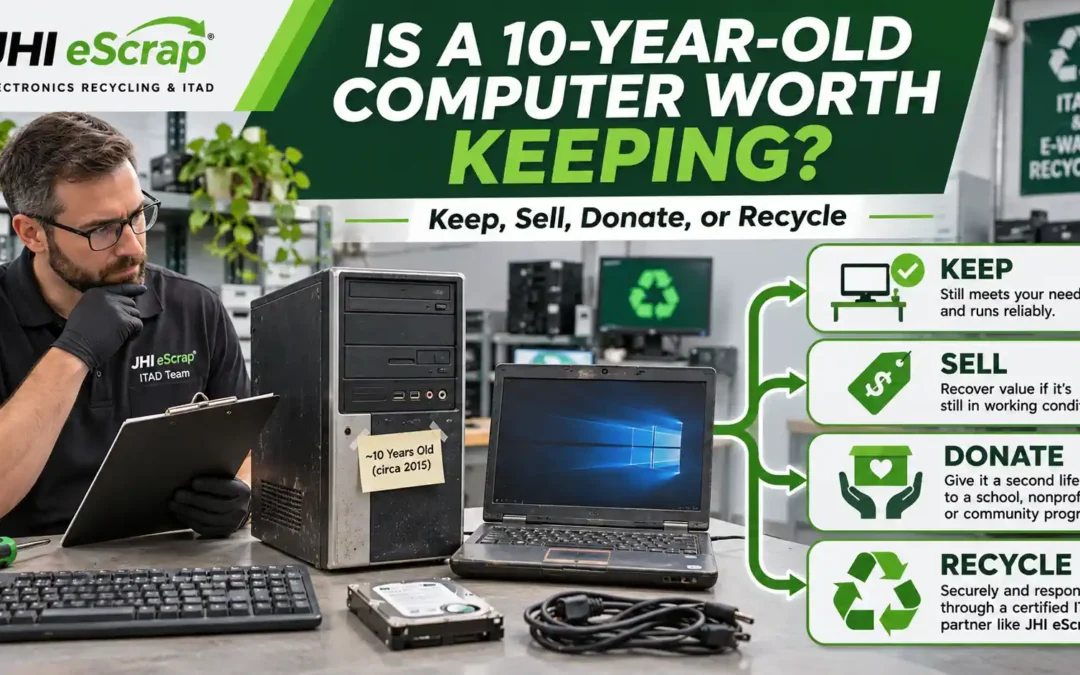
A 10-year-old computer can still be worth keeping. It can also be worth selling, donating, or recycling. The right choice depends on its condition, software support, and next job.
Age alone won’t tell you which option makes sense. A reliable desktop used for writing differs from a damaged laptop holding sensitive files. Start with what the machine can safely do today.
Quick answer: choose by usefulness, condition, and risk
Keep it if it meets a real need and has suitable software support. Sell it if comparable machines have buyers and selling is worth your time. Donate it if a recipient wants it and can use it. Recycle it if safe, practical reuse isn’t available.
Before any handoff: back up needed files and address every storage drive. A computer that won’t start may still contain readable personal data.
How do you know whether an old computer is still useful?
An old computer is useful when it performs a needed task reliably and safely. Don’t judge it only by startup speed or its original price.
First, name its next job. That could be writing documents, playing local music, or running a specific tool. Then test that job. Opening an empty desktop proves much less than completing your normal work.
Would you trust this computer with the task you actually need it to do?
Record the exact model and specifications
Find the manufacturer, model number, processor, memory, and storage type. Note whether it has a hard disk drive or solid-state drive. Also record the operating system and included power adapter.
Use the system information screen or manufacturer label. Avoid posting full serial numbers publicly. An exact model helps you find compatible parts and meaningful resale comparisons.
- Processor: record the full model, rather than just the processor family.
- Memory: note the installed amount and whether upgrades are supported.
- Storage: note each drive, its capacity, and any reported faults.
- Condition: list cracks, missing parts, loose hinges, and unreliable ports.
- Accessories: identify the correct charger, stand, or other required equipment.
Test everyday functions before spending money
Check the keyboard, screen, network connection, speakers, and ports you need. Try a video call if that’s part of the intended use. Watch for crashes, overheating, unusual noises, or charging problems.
Back up important files before lengthy testing or repairs. Stop using a laptop with a swollen battery. Don’t press the case closed or attempt to puncture the battery.
For an office cleanout, give each machine its own condition record. Identical models can have very different histories. One may work well while another needs costly repairs.
Keep, sell, donate, or recycle: which option fits?
Choose the option that gives the computer a realistic next use without creating avoidable risk. The table below helps separate useful equipment from a repair burden.
| Option | Best fit | Check first | Main tradeoff |
|---|---|---|---|
| Keep | Reliable machine with a clear purpose | Software support, hardware health, and needed repairs | Maintenance and limited performance |
| Sell | Working model with evidence of buyer demand | Completed sales, condition, fees, and data removal | Time spent testing and arranging the sale |
| Donate | Useful equipment a recipient agrees to accept | Acceptance rules, accessories, support, and privacy | Preparation and possible refurbishment |
| Recycle | Unsafe, unwanted, or uneconomical equipment | Accepted items, fees, batteries, and drive handling | Possible processing or collection costs |
These options can overlap. You might keep a working monitor, sell a useful component, and recycle the remaining tower. Each part still needs an appropriate destination.
A low resale value doesn’t automatically make a computer useless. Likewise, a working power button doesn’t make it donation ready. The next user’s needs matter as much as your own.
Think of the decision like passing along an older bicycle. Working brakes, suitable size, and a willing rider matter more than its birthday. Computers add another requirement: their software and stored information need attention too.
When is a 10-year-old computer worth keeping?
Keep it when it has a specific purpose, remains dependable, and has an appropriate support plan. Keeping a machine only because it might be useful someday often leads to more clutter.
Basic personal tasks
Writing, local media playback, and light browsing may be practical. Test your actual apps and confirm support.
Offline projects
A dedicated writing station or hobby machine can work well. Keep important files backed up elsewhere.
Learning and repair
A spare machine can help you learn hardware skills. Remove private data before experiments.
Specialized legacy work
Older equipment may support a specific tool. Plan access, backups, and eventual replacement carefully.
Give the computer a defined role
Write down what you’ll use it for and where it will live. A spare computer should have a reason to occupy space. If you can’t identify a likely use, consider moving it along.
Keeping an old laptop as a backup also requires maintenance. Confirm it still starts, receives appropriate updates, and runs the tools you need. An untested spare can fail when you finally depend on it.
Don’t use an aging drive as your only backup
An old computer can hold an extra copy of files. It shouldn’t hold the only copy. Storage can fail regardless of the computer’s apparent condition.
Check that your backup opens on another device. Include family photos, documents, and any files stored outside common folders. A backup plan works only when you can recover what matters.
Also consider power use and noise if the machine will run continuously. Measure actual consumption when that cost matters. Age and case size alone don’t establish how much electricity a computer uses.
Does software support matter more than the computer’s age?
Software support is a major deciding factor, especially for internet use and sensitive work. A computer can feel fast while running software that no longer receives normal security fixes.
According to Microsoft’s Windows end-of-support guidance, Windows 10 reached end of support on October 14, 2025. Eligible extended security update programs have separate terms and deadlines. Check current eligibility before relying on one.
Windows 11 compatibility depends on specific hardware requirements. Don’t assume an older computer qualifies because it has enough storage or memory. Check the exact model and Microsoft’s compatibility guidance before buying upgrades.
Check the whole software setup
Review the operating system, browser, and essential applications. An updated browser doesn’t replace operating system security fixes. Antivirus software also doesn’t restore support for an unsupported system.
For an older Mac, check the exact model against Apple’s supported software. For other systems, confirm the installed release still receives updates. Support status can change while the hardware continues working.
Consider an alternative operating system carefully
A supported Linux distribution may suit some older computers. Compatibility varies by processor, graphics, wireless hardware, and required apps. Test the actual tasks before committing to a change.
A different operating system isn’t a universal repair. It won’t fix a failing battery or broken cooling fan. It may also lack the software your household or workplace requires.
An offline role can reduce some exposure, but it doesn’t remove every risk. Removable drives can carry harmful files. Business legacy systems need planned access controls and qualified technical oversight.
Should you upgrade an old computer or replace it?
Upgrade it when a limited repair solves a clear problem at a sensible total cost. Replace it when several weaknesses remain or the software support problem has no practical solution.
Start with a diagnosis. Slow performance might come from storage, insufficient memory, overheating, or software problems. Buying parts without checking the cause can turn a small problem into wasted spending.
Upgrades that may be worth evaluating
- Solid-state storage: may improve responsiveness when replacing a slow hard drive.
- Additional memory: may help when your workload exceeds available memory.
- Battery replacement: may restore portability when other components remain healthy.
- Cooling maintenance: may help when dust or a faulty fan causes heat problems.
Confirm compatibility and repair access before ordering anything. Some computers use soldered memory or storage. Others require special parts or labor that changes the cost calculation.
An SSD upgrade is like clearing a narrow doorway. It can help information move faster. It won’t change the limits of an older processor or solve unsupported software.
Compare complete costs
Add parts, labor, data transfer, required software, and downtime. Compare that total with a suitable replacement, including a reputable refurbished option. Check the replacement’s support status and warranty terms too.
Don’t use the original purchase price as today’s repair budget. That money is already spent. Compare what each option will cost from this point forward.
A practical stop rule: pause when one repair reveals another major expense. A battery, screen, storage drive, and motherboard repair together may make replacement more sensible.
For teams managing older equipment, track recurring failures and staff delays. Repair cost alone misses the cost of interruptions. One inexpensive machine can become expensive when people repeatedly lose work.
Is a 10-year-old computer worth selling?
It may be worth selling if buyers want that exact model and the likely return justifies the effort. There isn’t one reliable price for every computer of this age.
A complete workstation, basic laptop, and collectible system serve different markets. Their value can differ widely. Condition, configuration, accessories, and local demand all affect the outcome.
Use completed sales rather than asking prices
Search for recent completed sales of the same model and similar specifications. An unsold listing shows what someone hopes to receive. A completed transaction offers better evidence of what a buyer paid.
Check whether the comparison included shipping, a warranty, or refurbishment. A professional seller’s price may include services you aren’t providing. Also separate working units from parts-only listings.
- Match the processor generation and graphics configuration.
- Compare installed memory and storage type.
- Account for battery condition and screen damage.
- Check whether a charger and operating system were included.
- Subtract selling fees, packaging, shipping, and preparation costs.
Describe the machine honestly
List what you tested and what remains unknown. Explain whether the battery holds a charge. Disclose missing storage, startup passwords, damaged ports, and unsupported software.
Take clear photos after removing personal information from the screen. Avoid exposing account names, documents, license keys, or asset labels containing private details. Don’t advertise untested features as working.
A parts sale may suit a machine that isn’t practical to restore. Label faults clearly and handle storage separately. Finding a buyer for components can take more work than selling one complete computer.
Rare or collectible equipment needs model-specific research. Ten years of age doesn’t establish collectible value. Don’t dismantle an unusual system before checking whether completeness matters to potential buyers.
For an ordinary machine with little demand, a donation or recycling route may save time. The highest advertised price isn’t always the best real outcome.
When does donating an old computer make sense?
Donation makes sense when a recipient wants the computer and can use it without an unreasonable repair burden. Always ask before delivering equipment.
Each organization sets its own rules. Some accept older models for refurbishment. Others need devices meeting specific software, performance, or age requirements. Acceptance can change with staffing, funding, and storage space.
Ask what the recipient actually needs
Share the model, specifications, condition, and included accessories. Explain any software support limits. Ask whether the recipient accepts machines without storage or an installed operating system.
Don’t assume a charity can fix everything. A box of broken equipment can create disposal costs. A smaller number of tested, complete computers may provide more useful help.
- Confirm the computer meets the recipient’s current acceptance rules.
- Include the correct charger or power cable when requested.
- Remove your data and accounts before transfer.
- Disclose faults and any missing components.
- Arrange the handoff and request a receipt if needed.
Make the handoff useful
Provide a short condition note describing your tests. Include supported installation or recovery information when appropriate. Don’t pass along personal accounts or software licenses you aren’t entitled to transfer.
If you remove the drive for privacy, tell the recipient in advance. The computer may need a replacement drive and setup work. That can change whether the donation fits their program.
Don’t assign a tax value based on the original price. Any deduction depends on the applicable rules and circumstances. Keep records and seek qualified tax advice if that question matters.
Donation should solve a need for the next owner. When no suitable recipient exists, responsible recycling remains a valid choice. You don’t need to force reuse that creates more problems.
When should you recycle a 10-year-old computer?
Recycle it when safe, practical reuse isn’t available or repairing it doesn’t make sense. A dead motherboard, severe damage, or repeated failures can make this route appropriate.
Working components may still have reuse potential. Ask whether the provider evaluates equipment for reuse before materials processing. Don’t assume every collected computer will be refurbished or sold.
Our guide to what is considered e-waste explains the broader category. For this decision, separate the computer from batteries, monitors, and accessories. Their acceptance rules may differ.
Ask practical questions before booking
- Do you accept this computer model and condition?
- Are individual household items accepted, or only business equipment?
- Is an appointment required?
- Are there collection, processing, or data handling charges?
- How are hard drives, SSDs, and damaged batteries handled?
- What records can you provide for the services agreed upon?
Get written details when the equipment contains sensitive business information. Equipment collection and verified data sanitization are separate services. Confirm both rather than assuming one includes the other.
Keep lithium batteries out of household bins
The EPA’s electronics donation and recycling guidance recommends protecting personal information and checking local collection options. It also says lithium-ion batteries and devices containing them should not enter household garbage or recycling bins.
Ask the receiving program how to handle batteries. Don’t force an embedded battery out of a laptop. For swelling, leaks, or other damage, stop use and request specific handling instructions.
Our article on the benefits of computer recycling explains why retired equipment deserves a planned destination. Keep reusable accessories separate when a provider or recipient can use them.
How do you protect your data before selling, donating, or recycling?
Protect your data by identifying every storage device and using a suitable sanitization process. Deleting files or emptying the recycle bin isn’t a dependable handoff method.
Think of your drive as a filing cabinet. Removing the labels doesn’t prove the contents are gone. The right process depends on the storage technology, its condition, and the sensitivity of the information.
1. Back up files and check the copies
Copy the information you need before making changes. Include downloads, photos, local email archives, and files stored outside standard folders. Open sample files on another device to confirm they transferred.
Check whether any app stores important information locally. Also preserve needed recovery keys and account recovery details in a secure place. Don’t erase the machine until you know what you need has been saved.
2. Identify all storage and account connections
A desktop may contain several drives. A laptop may contain internal storage plus an inserted memory card. Check attached USB drives and external storage before packing anything.
After confirming backups, sign out of accounts and remove device associations where appropriate. Deauthorize licensed software if required. Account sign-out protects access, but it doesn’t sanitize the underlying drive.
3. Choose a method suited to the media
Follow current manufacturer guidance or use a qualified data service. Hard drives and SSDs can need different methods. A process suitable for one storage type may be unsuitable for another.
Don’t assume every factory reset provides the same protection. Check what your model’s process actually does. Encryption-based erasure also requires suitable conditions and correct implementation.
If you cannot confirm successful sanitization, keep control of the drive. A failed drive may still contain recoverable information. Professional destruction may be appropriate when reuse and reliable erasure aren’t practical.
4. Verify and document the outcome
Check that the process completed successfully and covered each drive. For business equipment, retain records tied to the relevant device or media identifiers. Ask what the service provider verifies and reports.
A computer with no visible files isn’t proof that all storage was sanitized. Avoid home destruction methods involving drilling, burning, or smashing. They can cause injury and leave readable portions behind.
What should businesses do with a batch of older computers?
Businesses should use a documented retirement process that tracks equipment, ownership, and data handling. A batch cleanout involves more than multiplying a household handoff by the device count.
JHI’s IT asset disposition service is relevant when a business needs help evaluating retired equipment. Confirm the scope for your inventory, including any reuse assessment and data requirements.
Build an inventory before equipment moves
Record asset tags, serial numbers, models, locations, and storage media. Separate company-owned equipment from leased or employee-owned items. Check internal retention requirements before erasing anything.
Ask the responsible department to approve retirement. A machine may hold records under a retention requirement or legal hold. Removing equipment from daily use doesn’t automatically authorize deleting its contents.
Separate value recovery from information risk
A buyer’s interest in the hardware doesn’t settle the data question. Set sanitization requirements before releasing equipment. Explain whether drives can be reused, must be removed, or require destruction.
Ask how custody is recorded from collection through processing. Match final records against the original inventory. Investigate missing identifiers or unexplained differences before closing the project.
For specialized systems, preserve needed configuration details before retirement. A replacement plan may depend on custom software, expansion cards, or attached machinery. Involve IT and the staff who use the equipment.
Finally, account for staff time and storage space. A room full of unused computers can postpone decisions without preserving useful value. Set a retirement date and assign someone to complete the process.
What does a sensible decision look like in practice?
A sensible decision matches the computer’s condition to a real next use. These hypothetical examples show the reasoning without assuming a resale price or guaranteed service outcome.
Example: a working desktop for light personal use
The owner needs document editing and occasional browsing. The computer completes those tasks reliably. A supported software setup is available, and no major repair is needed.
Keeping it may make sense. The owner should maintain backups and review support over time. A replacement becomes more relevant when needed tasks or security requirements outgrow the system.
Example: a laptop needing several repairs
The screen is cracked, the battery no longer works well, and charging is unreliable. Repair requires several parts and labor. Comparable working models show limited buyer demand.
Recycling may be the practical route after data handling. A parts buyer could be another option if faults are disclosed. Donation makes sense only if a recipient knowingly accepts that condition.
Example: a business retiring matching computers
An office has several similar desktops with mixed conditions. Some start normally, while others have missing drives. The company needs an inventory and a consistent data process.
A batch evaluation can separate reuse candidates from recycling candidates. The company should approve handling requirements and reconcile final records. It shouldn’t assume every unit has equal value.
How do you choose a computer recycling option in Phoenix?
Choose a provider whose acceptance rules, data process, and collection arrangements fit your equipment. Confirm details before loading a vehicle or scheduling a pickup.
JHI eScrap in Phoenix works with business electronics and surplus equipment. Describe what you have so the team can discuss an appropriate evaluation. Don’t assume a single household laptop qualifies for business collection arrangements.
Gather the number of devices, exact models, condition, and storage status. Mention monitors, loose batteries, and accessories separately. Explain any stairs, loading restrictions, or scheduling limits.
Use JHI’s contact details to discuss equipment acceptance before visiting. Ask for current fees, appointment requirements, and available documentation. Confirm any pickup terms for your location and quantity.
For a household item, ask directly whether the provider accepts individual computers. If it doesn’t, request an appropriate alternative or check local collection programs. An event listing from a previous year doesn’t confirm today’s availability.
Final checklist before your computer leaves
Complete the handoff only after the destination and data handling are clear. This checklist helps prevent avoidable mistakes.
- Confirm ownership: make sure you have permission to sell, donate, or recycle it.
- Save needed files: check that backups open on another device.
- Check every drive: include secondary storage, cards, and attached devices.
- Address accounts: remove access and device associations where appropriate.
- Complete data handling: verify sanitization or arrange documented professional service.
- Confirm acceptance: agree on condition, included parts, fees, and collection details.
- Pack appropriately: protect equipment and follow battery handling instructions.
- Keep records: retain the receipt, transfer details, and agreed service documentation.
Avoid spending money just to make the computer appear more valuable. Test first, compare realistic alternatives, and choose a destination. The goal is useful equipment in the right hands with private information protected.
Frequently asked questions
Is a 10-year-old computer too old to use?
No. It may still suit limited tasks if it’s reliable and uses appropriate supported software. Test the exact work you need it to do. Age alone doesn’t establish performance, security, or remaining life. Repeated crashes, costly repairs, and software limits are stronger reasons to move on.
How much is a 10-year-old computer worth?
Its value depends on the exact model, condition, configuration, and buyer demand. Check recent completed sales for close matches. Subtract fees, repairs, packaging, and shipping. Without those details, a general dollar estimate would be unreliable. Some equipment has reuse value even when selling it isn’t worthwhile.
Can I donate a computer that runs unsupported software?
Ask the recipient before donating it. A refurbishing program may accept the hardware and install suitable supported software. Another organization may decline it. Explain the installed system and any compatibility limits. Don’t present the computer as ready for everyday online use unless its setup supports that use.
Will replacing the hard drive make my old computer like new?
No. A compatible SSD may improve responsiveness when storage is the bottleneck. It won’t renew the processor, battery, motherboard, or software support. Diagnose the problem first. Compare the full upgrade cost with a suitable replacement before buying parts.
Do I need to remove the hard drive before recycling?
Removal isn’t always necessary when a verified data service handles the drive. You still need a clear plan for every storage device. If sanitization can’t be confirmed, retain the drive or arrange suitable professional handling. Remember that some computers use soldered storage or contain more than one drive.
Does a broken computer still contain personal information?
Yes, it can. A failed screen, battery, or motherboard doesn’t necessarily damage the storage. Someone may be able to read a removed drive. Treat a computer that won’t start as potentially containing data until each storage device has been appropriately handled.
Is recycling an old computer always free?
No. Charges can depend on location, equipment, quantity, collection, and data services. Some programs accept certain items without charge, while others have fees or restrictions. Confirm current terms before traveling. Never assume a business pickup offer applies to one residential computer.
Should I keep the monitor, keyboard, and charger?
Keep useful accessories that work with your next setup. Include the correct charger when selling or donating a laptop if agreed. Ask whether a recipient or recycler accepts remaining accessories. Check monitor connections before replacing equipment unnecessarily. Handle damaged batteries and unsafe power accessories separately.
Choose the next job before choosing the destination
A 10-year-old computer deserves a practical assessment. Keep it for a clear purpose. Sell it when demand and preparation costs support the effort. Donate it when someone agrees it meets a need.
When those paths don’t fit, recycle it through a suitable program. Protect your files and accounts whichever option you choose. Then complete the handoff so the machine doesn’t return to the storage pile.